Screens
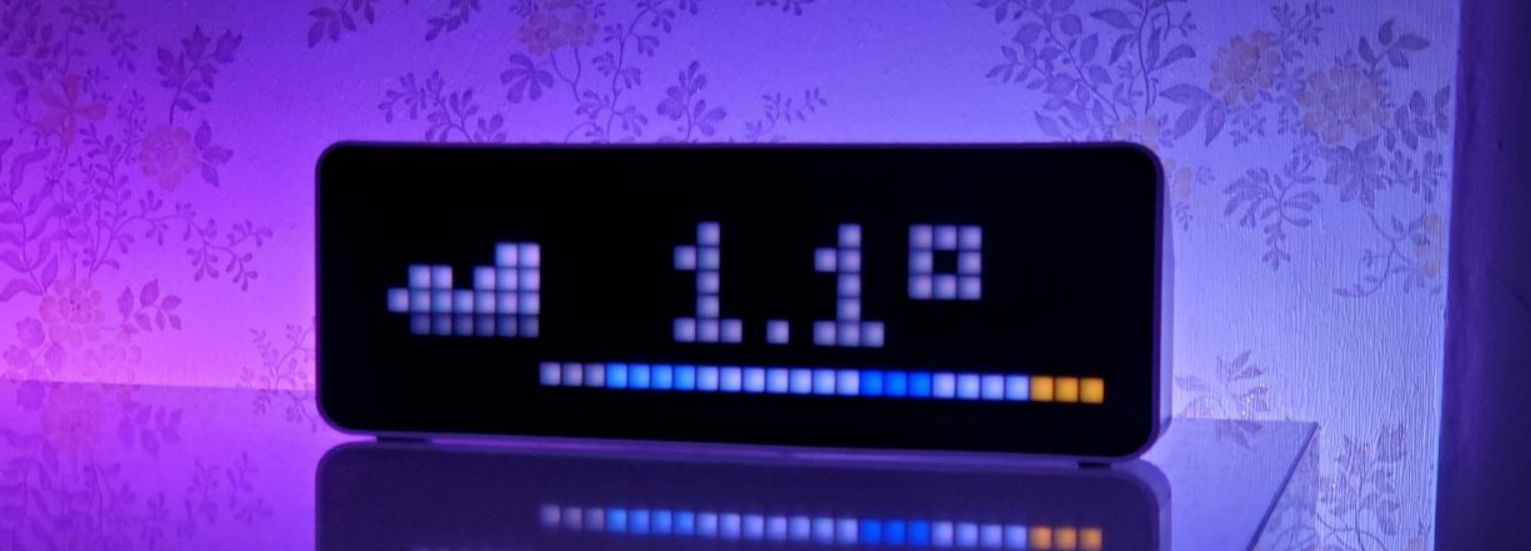
MODE_ICON_PROGRESS
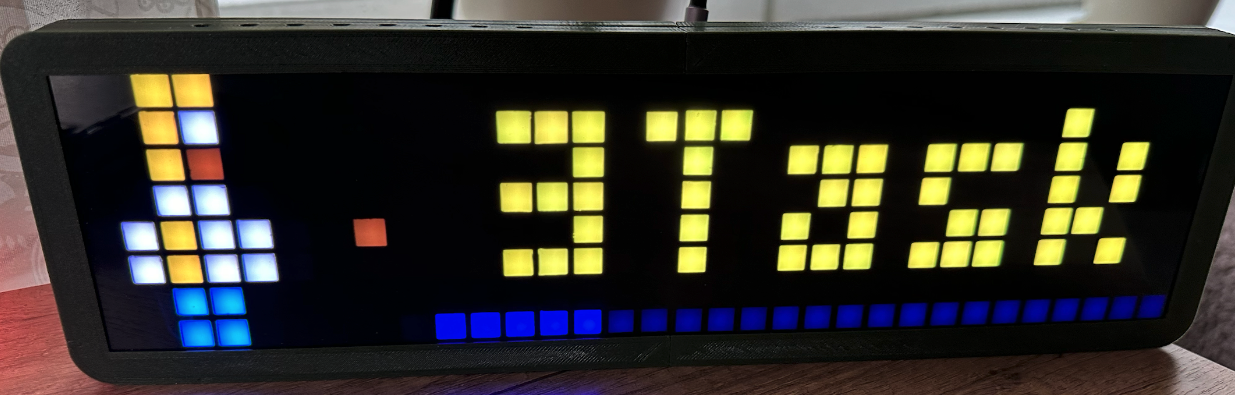
Icon screen progress
alias: Pixel Clock - Power
trigger:
  - platform: state
    entity_id: sensor.home_power
    id: over
  - platform: numeric_state
    entity_id: sensor.home_power
    below: 5000
    id: normal
condition:
  - condition: template
    value_template: >
      {{ trigger.id == 'normal' or (trigger.id == 'over' and states('sensor.home_power') | int(0) > 5000) }}
action:
  - action: esphome.pixel_clock_icon_screen_progress
    data:
      icon_name: power
      text: "{{ (states('sensor.home_power') | int(0) / 1000) | round(1) }}kW"
      progress: "{{ -1 * (states('sensor.home_power') | int(0) / 100) | round(0) }}"
      lifetime: "{{ 5 if states('sensor.home_power') | int(0) > 1000 else 3 }}"
      screen_time: 5
      default_font: true
      r: >-
        {{
          240 if states('sensor.home_power') | int(0) > 5000 else
          240 if states('sensor.home_power') | int(0) > 1000 else
          0
        }}
      g: >-
        {{
          0 if states('sensor.home_power') | int(0) > 5000 else
          240 if states('sensor.home_power') | int(0) > 1000 else
          240
        }}
      b: 0
mode: restart
MODE_PROGNOSIS_SCREEN
Tip
Additional examples and screenshots are available at the link
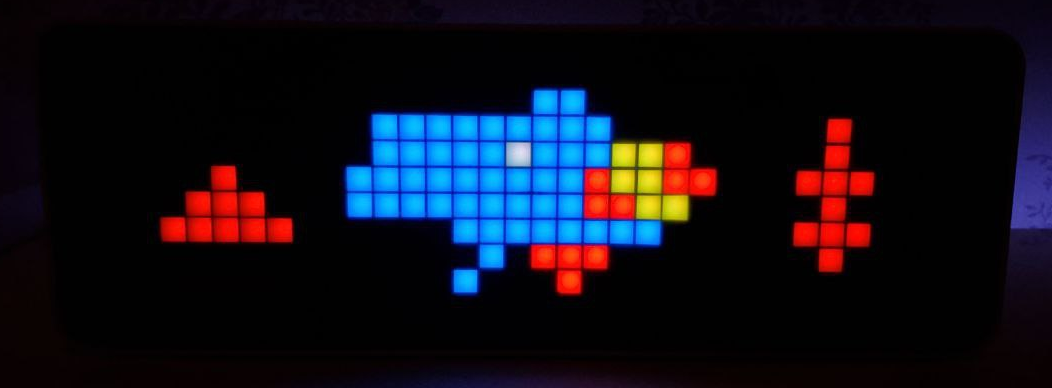
MODE_BITMAP_SCREEN
Warning
This feature is only available on ESP32 platform !!!
For 8x32 images as text. You can generate these images with, e.g., Bitmap Editor or just open the Bitmap Converter and select the images you want. This tool will automatically scale and convert your images into the correct RGB565 format for the bitmap_screen service.
Service via API